
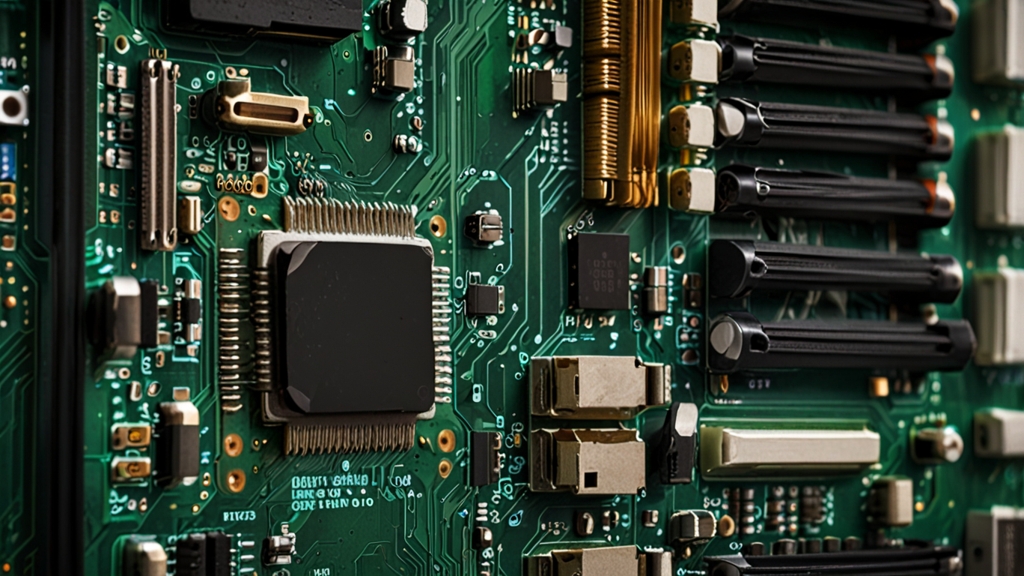
The motherboard is one of the most critical components of a computer, and its malfunction can lead to complete system failure. Motherboard problems often manifest unpredictably and can be difficult to diagnose. In this article, we will examine the main methods and tools for checking the condition of a motherboard, which will help you identify problems at an early stage.
Visual Diagnosis and External Signs of Malfunction
The first and most accessible way to check a motherboard is visual inspection. Disconnect your computer from the power supply, open the case, and carefully examine the board. Pay attention to burn marks, charred areas, liquid leaks, or oxidized contacts. These signs indicate serious problems that require professional repair or component replacement.
Pay special attention to capacitors — cylindrical-shaped electrolytic components. If you notice that the tops of capacitors are swollen, cracked, or show signs of electrolyte leakage, this is a sure sign of malfunction. Capacitors often fail first, and their replacement can significantly extend the life of the board. Also check the power connectors — they should not be burned or deformed.
Audible signs are also important. If you hear unusual sounds, squeaking, or buzzing coming from the motherboard or power supply transformer when you turn on your computer, this may indicate problems with electrolytic capacitors or inductors. The smell of burning plastic or insulation is another alarming signal that requires immediate disconnection of the device from the power supply.
Checking Through BIOS and System Utilities
When your computer turns on but functions unstably, checking parameters in BIOS can help. Reboot your system and enter BIOS by pressing the appropriate key (usually Delete, F2, or F10, depending on the manufacturer). In the BIOS menu, pay attention to the readings from temperature sensors, voltage sensors, and fan rotation speeds.
Critically high temperatures, incorrect voltage values (they should differ from nominal values by no more than 5 percent), or missing signals from sensors indicate problems. For example, if the 12V voltage reading shows 2V, this clearly indicates a malfunction in the motherboard’s power circuit. Some motherboards have a built-in diagnostic function that allows you to check component integrity during boot.
Use monitoring programs such as CPU-Z, GPU-Z, or HWiNFO. These utilities display detailed information about voltages, temperatures, and frequencies operating in your system. Install one of them and pay attention to the stability of the readings. Sharp spikes in voltage or temperature under unchanged load indicate power supply or motherboard sensor problems.
Software Diagnosis and Testing
For a deeper analysis of the motherboard’s component condition, use specialized diagnostic software. One of the most popular is MemTest86, designed for RAM testing. Memory instability is often related to problems with motherboard slots, so this program will help you determine where the exact problem lies.
Use the built-in Windows tool — Memory Diagnostic Tool. Open it through the search in the Start menu and run the check. The system will reboot and conduct a complete test of the memory and related motherboard components. The error report will help you understand if there are problems with contacts or memory slots.
To check the power supply equipment, download Prime95 — a program for CPU stress testing. Under full load, problems with the motherboard’s power circuits become most apparent. If the system runs stably under maximum load for several hours, this is a good sign that the main power components are functioning normally.
Diagnosis Through Error Code and Sound Analysis
When a motherboard malfunctions, the computer often produces certain beep sounds (POST codes) during startup. One long beep and two short beeps typically indicate video card problems, but if you hear other combinations or the system doesn’t beep at all, this may be a sign of motherboard power problems or initialization errors.
If your computer won’t boot at all, try the component reseating method. Disconnect all peripheral devices, leaving only the processor, memory, and video card (if integrated graphics doesn’t work). Reseat the RAM in different slots and clean the contacts from dust. Often problems are caused by poor contact rather than actual board failure.
If the system produces repeated beep sounds when powered on and won’t boot, this may indicate a CPU power circuit malfunction or BIOS problems. In this case, try resetting BIOS by removing the CMOS battery for 10-15 minutes. This may help if the problem is caused by incorrect settings rather than physical component failure.
Professional Service Diagnosis and When to Contact Specialists
If self-diagnostics haven’t yielded results, or you’ve identified physical damage, it’s time to contact professionals. Service centers have specialized diagnostic equipment, including multimeters, oscilloscopes, and BIOS programmers. They will be able to accurately determine which components are faulty and whether they can be repaired.
Before visiting a service center, prepare information about the symptoms: when the errors started appearing, what sounds the system makes, and whether you’ve observed voltage fluctuations in the power supply. Also remember the data on your hard drive — if the motherboard can still power on, be sure to create backups of important information before sending it for repair.
Some motherboard problems, such as blown capacitors, can be fixed by a skilled technician by replacing faulty components. However, complex problems, such as broken traces on the board or chipset damage, often require complete motherboard replacement. Timely diagnosis will help you understand whether repair makes sense or if it’s better to invest in a new component.
Checking a motherboard for malfunctions is a multi-stage process that begins with visual diagnosis and ends with professional testing at a service center. By applying the described methods sequentially, you will significantly increase the likelihood of identifying the problem and choosing the best solution. Remember that early detection of a malfunction can save not only the board itself but also other components of your computer from damage.
For a deeper understanding of the specifics of motherboard diagnosis and repair, we recommend visiting the Overclock.net community, where experienced enthusiasts share tips and instructions on diagnosing and repairing computer equipment.