
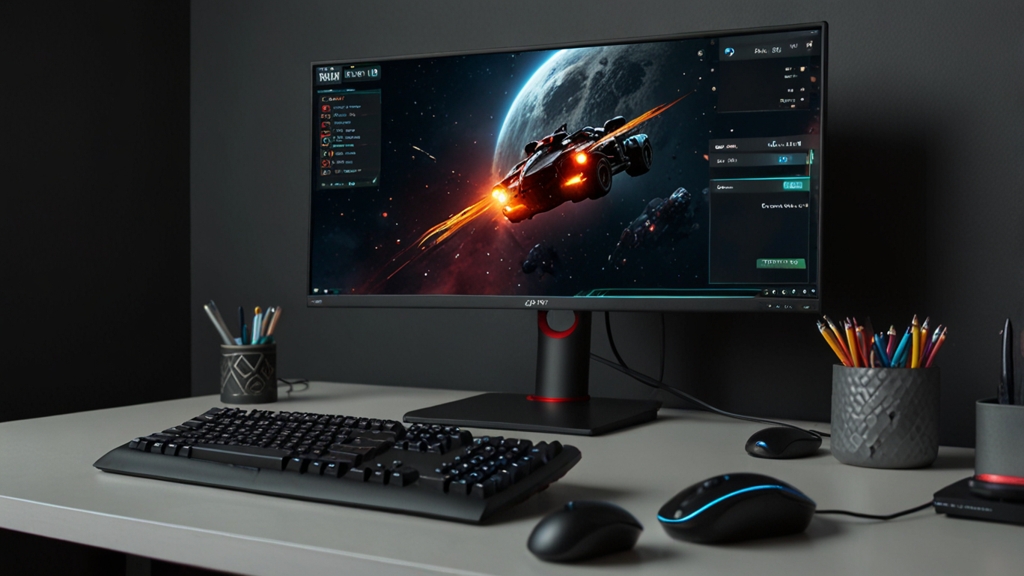
How to Reduce Input Lag in PC Games: A Complete Guide
Input lag is one of the most frustrating issues PC gamers face. That annoying delay between pressing a button and seeing your character respond on screen can mean the difference between victory and defeat, especially in competitive games like first-person shooters, fighting games, and fast-paced action titles. The good news? There are numerous ways to reduce input lag, and many of them don’t require expensive hardware upgrades. Let’s explore the most effective strategies to get you the responsiveness you deserve.
Understanding Input Lag
Before we dive into solutions, let’s understand what causes input lag. Input lag is the cumulative delay between your input device (mouse, keyboard, or controller) and the visual feedback on your monitor. This delay comes from multiple sources: your peripherals, graphics processing, monitor refresh rates, and even your internet connection if you’re playing online. The total lag can range from a few milliseconds to several hundred, depending on your setup.
Optimize Your Graphics Settings
One of the most impactful ways to reduce input lag is to optimize your in-game graphics settings. When your GPU works harder than necessary, it introduces rendering delays that directly affect input responsiveness.
- Lower your resolution: Running at 1080p instead of 1440p or 4K significantly reduces the processing load on your GPU, allowing faster frame rendering and lower input lag.
- Reduce quality settings: Disable or lower settings like ray tracing, shadows, ambient occlusion, and anti-aliasing. These visual enhancements are beautiful but come at the cost of responsiveness.
- Disable V-Sync: V-Sync synchronizes your frame rate with your monitor’s refresh rate, which can add 1-3 frames of latency. Turn it off for competitive play, though you may experience screen tearing.
- Enable FPS unlocking: Cap your FPS at a number slightly above your monitor’s refresh rate. If you have a 144Hz monitor, aim for 160+ FPS.
- Prioritize frame rate: In competitive games, high frame rates matter more than visual fidelity. A smooth 240 FPS at low settings beats 60 FPS at ultra settings every time.
Use NVIDIA or AMD Driver Settings
Your GPU drivers contain hidden settings that can help reduce input lag. Both NVIDIA and AMD provide options specifically designed for competitive gaming.
For NVIDIA Graphics Cards: Open NVIDIA Control Panel and navigate to “3D Settings.” Look for “Max Frame Rate” and set it to your monitor’s refresh rate plus 5-10 FPS. Also enable “Ultra Low Latency Mode” (formerly known as Low Latency Mode) to minimize input lag at the driver level. You can also check NVIDIA’s official Reflex technology page for games that support even lower latency modes.
For AMD Graphics Cards: In AMD Radeon Settings, navigate to “Graphics” and look for “Wait for Vertical Refresh.” Set this to “Off” to disable V-Sync at the driver level. You can also adjust “Flip Queue Size” to 1 for reduced latency.
Upgrade Your Monitor
While not a software solution, your monitor plays a crucial role in input lag. Standard 60Hz monitors introduce 16.7 milliseconds of latency just from refresh rate alone. Consider upgrading to a high refresh rate monitor.
- 144Hz monitors: A solid upgrade that reduces monitor latency to 6.9 milliseconds. Great for most competitive games.
- 240Hz monitors: Further reduces latency to 4.2 milliseconds and is becoming standard for esports players.
- 360Hz monitors: The latest high-end option with 2.8 milliseconds of latency, ideal for professional competitive gaming.
- Look for IPS panels with low response times: Response time (typically 1-5ms) determines how quickly pixels change color, affecting perceived responsiveness.
Invest in Low-Latency Peripherals
Your input devices contribute to overall lag. Wireless mice and keyboards introduce more latency than wired alternatives, typically 1-5 milliseconds of delay.
- Use a wired mouse and keyboard: Eliminate wireless latency entirely by using USB-connected peripherals.
- Choose gaming-specific mice: Gaming mice are designed with lower polling rates (typically 1000Hz or higher) and faster sensors.
- Adjust polling rate: Most gaming mice allow you to adjust polling rate in their software. Set it to the maximum (usually 1000Hz).
- Consider mechanical keyboards: They typically have faster actuation than membrane keyboards.
Configure Windows Settings
Your operating system settings can impact input responsiveness. Make these adjustments for better gaming performance.
- Disable fullscreen optimizations: Right-click your game’s executable, select Properties, go to the Compatibility tab, and uncheck “Fullscreen Optimizations.”
- Run in exclusive fullscreen: Use exclusive fullscreen mode rather than windowed or borderless windowed modes, which add input lag.
- Disable mouse acceleration: In Windows Settings under Devices > Mouse, uncheck “Enhance pointer precision.” This ensures consistent mouse movement without OS-level acceleration.
- Increase mouse polling rate in Windows: Download and run MouseRate to verify and adjust your mouse’s polling rate in Windows.
- Close background applications: Disable unnecessary programs running in the background to free up system resources and reduce input processing delays.
Network Optimization for Online Games
For online gaming, network latency adds to your overall input lag. While you can’t control server-side delays, you can minimize your connection’s contribution.
- Use a wired Ethernet connection: Replace Wi-Fi with a direct Ethernet cable for more stable, lower-latency connections.
- Close bandwidth-heavy applications: Stop downloads, streaming services, and video calls before competitive gaming sessions.
- Choose servers with lower ping: Play on game servers geographically closer to you.
- Forward ports on your router: Check your game’s documentation and forward the appropriate ports for optimal connection stability.
Fine-Tune Game-Specific Settings
Many games have built-in settings to reduce input lag. Check your specific game’s options menu for low-latency or performance modes. Some games offer options like “Frame Rate Target Control” or “Low Latency Mode” that can be fine-tuned for your specific setup.
Conclusion
Reducing input lag is a combination of hardware and software optimization. Start with the software tweaks we’ve discussed—they’re free and can make a significant difference. If you’re serious about competitive gaming, consider upgrading to a high refresh rate monitor and gaming peripherals with low-latency specifications. Remember, even a 10-millisecond improvement in responsiveness can impact your gaming performance. Experiment with these settings, test the results, and find the sweet spot between visual quality and responsiveness that works best for you. Happy gaming!