
How to Connect Two Monitors to One PC: A Complete Guide for Gamers and Tech Enthusiasts
Whether you’re looking to expand your gaming setup, boost your productivity, or simply want a more immersive computing experience, connecting two monitors to a single PC is easier than you might think. Multi-monitor setups have become increasingly popular among PC gamers and content creators, offering enhanced gameplay, better multitasking capabilities, and an impressive visual presence. In this guide, we’ll walk you through everything you need to know about setting up dual monitors on your gaming rig.
Why Dual Monitors Matter for PC Gamers
Before diving into the technical setup, let’s understand why dual monitors are worth the investment. Many competitive gamers use secondary monitors for Discord, streaming software, or game statistics. Content creators benefit from having their editing software on one screen while previewing content on another. Even casual gamers enjoy the immersive experience of extended gaming across multiple displays. The flexibility and productivity gains make dual-monitor setups one of the most impactful upgrades you can make to your gaming PC.
Check Your GPU’s Video Output Options
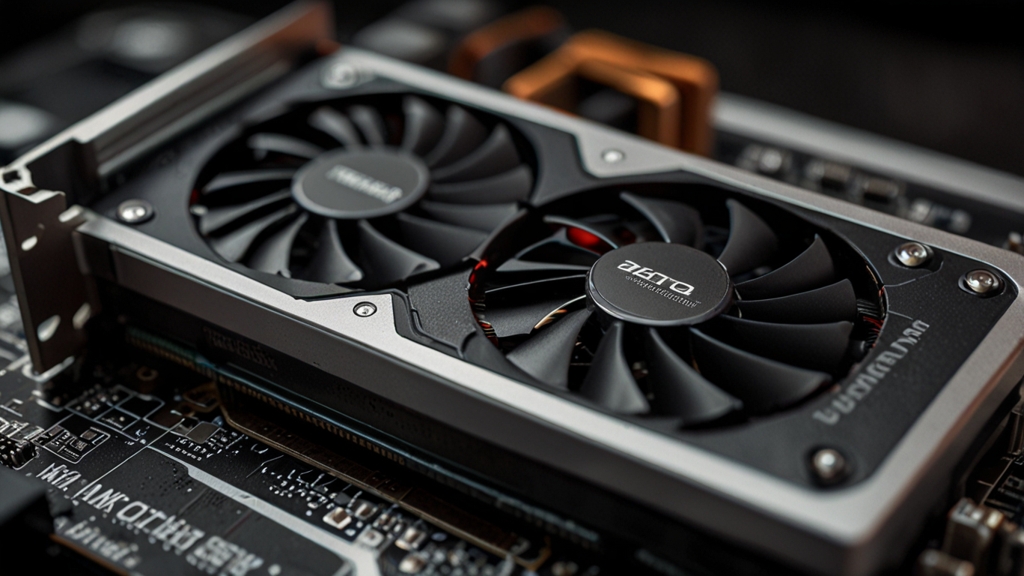
The first and most critical step is understanding what video outputs your graphics card supports. Modern GPUs typically feature multiple connection options, and identifying what you have is essential. Most contemporary graphics cards come equipped with DisplayPort, HDMI, or both. Some older cards might have DVI outputs as well.
Take a moment to examine the rear panel of your graphics card. You should see at least two video output ports. If you’re using an integrated GPU (Intel UHD, AMD Radeon integrated graphics), your motherboard’s rear I/O panel will have the video outputs. Most modern integrated graphics support dual displays without any issues, making them a solid option for office work and everyday computing.
Gather Your Cables and Adapters
Once you’ve identified your GPU’s outputs, it’s time to gather the necessary cables. Here’s what you’ll typically need:
- DisplayPort cables: Ideal for high-refresh-rate gaming and superior bandwidth
- HDMI cables: The most common and universal option, widely compatible across all monitors
- DVI cables: Older standard but still functional for basic displays
- USB-C to DisplayPort adapters: Useful if your GPU features USB-C output
- Active adapters: May be necessary if converting between certain output types
Purchase quality cables from reputable manufacturers. Cheap cables can result in signal degradation, especially at higher resolutions and refresh rates. For gaming setups, DisplayPort is generally preferred over HDMI due to superior bandwidth capabilities and support for higher refresh rates and resolutions.
Step-by-Step Connection Guide
Step 1: Power Down Your PC
Always start with your PC powered off and unplugged from the wall socket. This ensures your safety and protects your hardware from potential electrical issues during the connection process. Wait a minute or two after shutting down to ensure all components have fully discharged.
Step 2: Connect Monitor One
Plug your first monitor into the primary video output of your graphics card. This is typically the leftmost DisplayPort or HDMI port on your GPU. Connect the cable securely, ensuring the connector clicks into place. Avoid forcing connections, as this can damage both the port and the cable.
Step 3: Connect Monitor Two
Attach your second monitor to the secondary video output on your GPU using your chosen cable type. Different GPU models have different port layouts, so consult your graphics card’s manual if you’re uncertain about the port order. Most modern GPUs allow flexible pairing of any two outputs, so you’re not strictly limited to specific combinations.
Step 4: Power On and Configure
Plug your PC back in and power it on. Windows will automatically detect both monitors in most cases. You’ll likely see some configuration prompts or notifications. The system may initially display on just one monitor—this is normal. Right-click on your desktop and select “Display settings” to configure your dual-monitor setup.
Configuring Your Display Settings in Windows
Once both monitors are physically connected, Windows needs to be configured to use them properly. Open Settings and navigate to System > Display. You should see both monitors listed with detection numbers. Here are the key configuration options:
- Identify displays: Click this button to see which physical monitor corresponds to which detected display
- Arrangement: Drag and drop monitor icons to match their physical positions on your desk—this ensures cursor movement feels natural
- Main display: Select which monitor should serve as your primary display for notifications and taskbar
- Resolution and refresh rate: Configure these settings for each monitor independently to match their specifications
- Scaling: Adjust if text appears too small or large on either display
For gaming, ensure your primary gaming monitor is set to your highest available refresh rate. If you’re connecting different monitor models with different specifications, Windows allows you to set each independently.
Optimizing Your Dual-Monitor Setup for Gaming
With your monitors connected and configured, you can further optimize for gaming performance. Check your GPU’s control panel—NVIDIA Control Panel or AMD Adrenalin depending on your card—for multi-display settings. These tools offer advanced options like spanning a single application across both displays or gaming on one monitor while streaming software runs on the other.
For maximum gaming performance, consider using your primary monitor for gaming and reserving the secondary for chat, streaming software, or monitoring tools. This approach minimizes performance impact while maximizing the benefits of your multi-monitor setup. For more detailed information about multi-GPU and multi-display configurations, consult NVIDIA’s specifications guide.
Troubleshooting Common Issues
If one monitor doesn’t display, ensure the cable is firmly connected and try a different port on your GPU. Update your graphics drivers to the latest version—driver issues are the most common cause of display problems. If Windows doesn’t detect a monitor, restart your PC and check that the monitor itself is powered on and set to the correct input source.
Final Thoughts
Setting up dual monitors transforms your PC experience, whether for gaming, productivity, or content creation. The process is straightforward once you understand your hardware’s capabilities. Invest in quality cables, take your time with the configuration, and you’ll enjoy a significantly enhanced computing experience. Happy gaming with your new dual-monitor setup!