
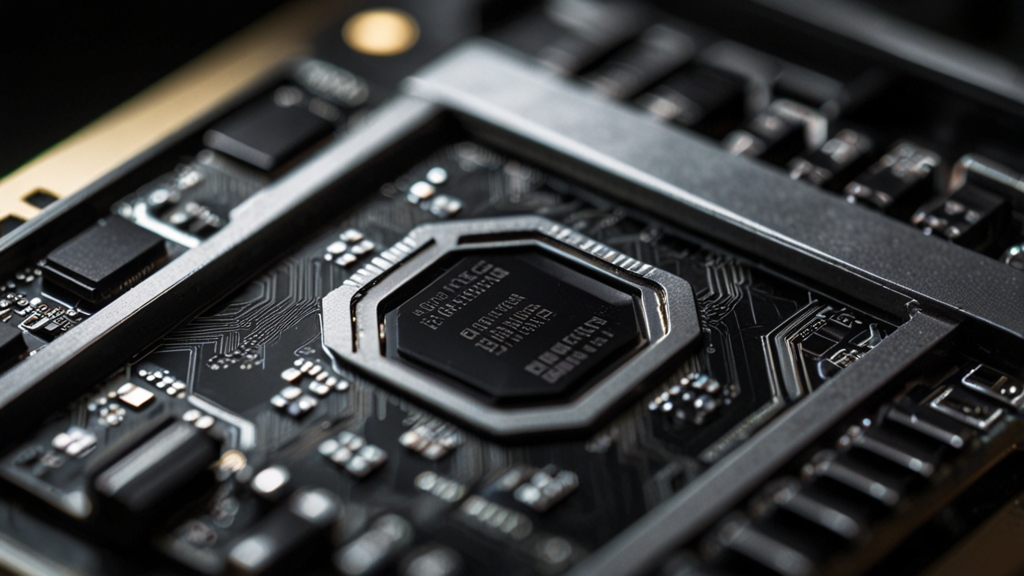
How to Clean GPU Fans Without Damaging Them: A Complete Guide
Your graphics card works hard to keep your PC cool during intense gaming sessions, and the GPU fans are essential to that operation. Over time, dust accumulates on these fans, reducing their efficiency and potentially causing thermal throttling that impacts your gaming performance. However, cleaning your GPU fans requires care and attention to avoid permanent damage. In this guide, we’ll walk you through the safest methods to keep your graphics card fans in pristine condition.
Why Regular GPU Fan Cleaning Matters
Dust buildup on GPU fans doesn’t just look bad—it directly impacts cooling performance. When dust coats the fan blades, the airflow becomes restricted, and your graphics card has to work harder to maintain optimal temperatures. This can lead to thermal throttling, where your GPU reduces its clock speed to prevent overheating, resulting in lower frame rates and stuttering during gameplay. Additionally, excessive heat puts unnecessary stress on the fan bearings and the entire graphics card, potentially shortening its lifespan.
Regular cleaning every three to six months (depending on your environment) can maintain optimal cooling performance and extend your hardware’s longevity. The good news is that you don’t need expensive tools or specialized equipment—just patience and the right technique.
Tools You’ll Need
Before you start, gather these essential items:
- Compressed air canister (the most important tool)
- Soft-bristled brush (optional, for stubborn dust)
- Microfiber cloth
- Anti-static wrist strap
- Well-lit workspace
- Small container or bag for screws
Never use a vacuum cleaner directly on your GPU, as the static electricity buildup can damage sensitive components. Similarly, avoid water or liquid cleaners unless your graphics card is completely removed and fully dry before reinstalling.
Step-by-Step Cleaning Instructions
Step 1: Power Down and Prepare
Start by shutting down your PC completely and waiting 10-15 minutes for it to cool down. Unplug the power cable from your power supply to ensure complete power disconnection. Never work on active hardware or components that are still warm. Put on your anti-static wrist strap and attach it to a metal part of your case to prevent electrostatic discharge that could permanently damage your GPU.
Step 2: Remove the Graphics Card (If Necessary)
For light dust cleaning, you can often clean the fans while the GPU remains installed in your PC. However, for thorough cleaning or if dust is heavily accumulated, removing the card makes the job easier. To remove your GPU, unscrew the mounting bracket from the case, gently release the PCIe slot retention clip, and carefully slide the card out. Place it on an anti-static surface or bag.
Step 3: Use Compressed Air Correctly
This is the crucial step where most people make mistakes. Hold the compressed air canister upright and use short, controlled bursts rather than continuous spraying. Here’s the key technique: while using compressed air, physically prevent the fans from spinning. This is absolutely critical.
Place your finger or a soft object gently against the fan blade to prevent it from rotating rapidly. The sudden rotation caused by compressed air can damage the bearings inside the motor. Use the air nozzle to blow dust away from the center of the fan outward, covering all three fan blades thoroughly. Work from one side, then flip the card and repeat on the other side.
Hold the compressed air canister 3-4 inches away from the fans for optimal dust removal without excessive pressure that could damage delicate components.
Step 4: Address Stubborn Dust with a Soft Brush
If compressed air alone doesn’t remove all the dust, use a soft-bristled brush gently against the fan blades. Move the brush in the direction of the blade, not against it, to avoid pushing dust further into the motor housing. Again, prevent the fan from spinning while doing this. A soft toothbrush works well for this purpose, though brushes specifically designed for electronics are even better.
Step 5: Clean the GPU Heatsink
While you’re at it, clean the aluminum heatsink fins. These fins accumulate dust and significantly impact cooling efficiency. Use compressed air to blow between the fins from the side, allowing dust to fall out rather than get pushed deeper. Be especially careful here, as aggressive cleaning could bend the thin fins.
Step 6: Wipe Down the Card
Use a microfiber cloth to gently wipe the exterior of the GPU, including the fan blades themselves. This removes any remaining dust particles and leaves the card looking clean. Avoid touching the gold connectors at the bottom of the card.
Important Precautions to Follow
- Never let fans spin freely: Always hold the fans steady while cleaning to prevent bearing damage
- Avoid direct contact with electronic components: Don’t touch capacitors, resistors, or the GPU itself
- Don’t use thermal paste or liquids: Only use compressed air and soft brushes unless you’re experienced with GPU maintenance
- Be patient: Multiple short bursts of compressed air work better than one long spray
- Work in a well-ventilated area: Dust will be flying around, and you don’t want to inhale it
- Keep away from moisture: Never expose the card to liquids or high humidity during cleaning
Reinstalling Your GPU
Once cleaning is complete and you’ve removed the GPU from your case, reinstall it by reversing the removal process. Align the card with the PCIe slot, press it down firmly until you hear a click, and secure the retention clip. Screw the mounting bracket back into place, reconnect any PCIe power connectors, and verify the card is properly seated before powering on your PC.
Maintenance Tips for the Future
To reduce cleaning frequency, maintain good case airflow by keeping your PC in a dust-free environment. If you have pets or live in a dusty area, clean your GPU fans every two to three months. Consider installing quality case fans to create positive air pressure, which helps minimize dust entering your system.
For more detailed information about GPU maintenance and specifications, consult NVIDIA’s official support documentation.
Final Thoughts
Cleaning your GPU fans is a straightforward maintenance task that takes about 15-30 minutes and significantly improves your graphics card’s performance and longevity. The key is working carefully, preventing fan rotation, and using the right tools. Your future self will thank you when your GPU maintains cooler temperatures and delivers consistent frame rates in your favorite games.