
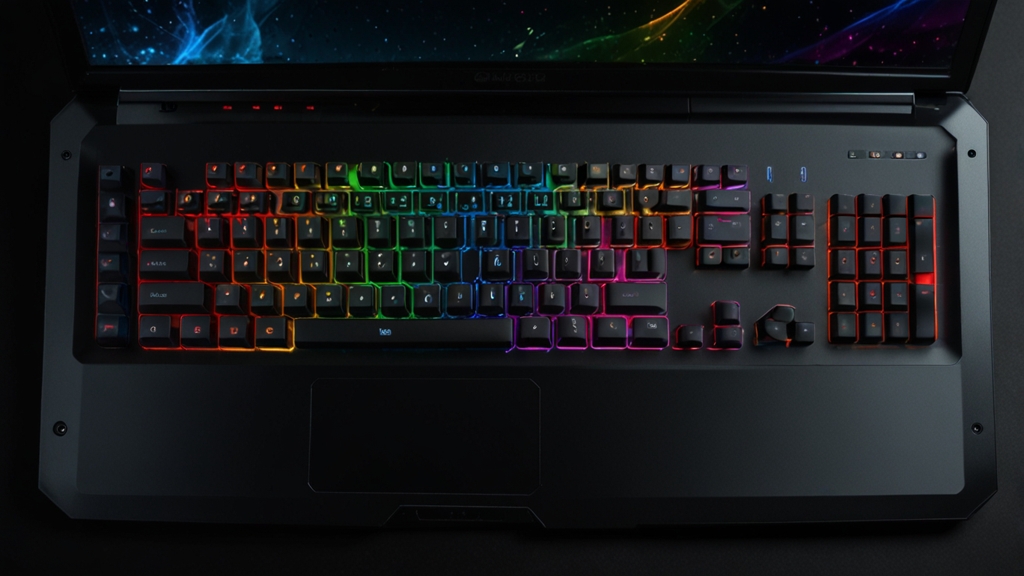
How to Clean a Gaming Laptop Without Damaging It: A Complete Guide
Gaming laptops are precision machines that demand respect—especially when it comes to maintenance. Your GPU, CPU, and intricate circuitry generate substantial heat during intense gaming sessions, and dust accumulation is one of the fastest ways to throttle performance and reduce your laptop’s lifespan. However, cleaning your gaming laptop requires finesse and knowledge to avoid costly damage. In this guide, we’ll walk you through the proper techniques to keep your gaming rig running cool and performing at peak efficiency.
Why Cleaning Your Gaming Laptop Matters
Before diving into the how-to, let’s discuss the why. Gaming laptops are compact devices where every millimeter counts. Dust clogs air vents, fans, and heatsinks, forcing your GPU and CPU to work harder to maintain safe temperatures. This leads to thermal throttling—where your processor intentionally reduces clock speeds to prevent overheating. The result? Frame rate drops, stuttering, and diminished gaming performance. Additionally, heat buildup can damage components over time, potentially shortening your laptop’s lifespan from years to months. Regular cleaning prevents these issues and maintains your investment.
Tools You’ll Need
Gather the right equipment before starting. You’ll need:
- Compressed air canister (the most important tool)
- Soft-bristled brush or old toothbrush
- Microfiber cloth
- Isopropyl alcohol (90% or higher concentration)
- Thermal paste (optional, for advanced users)
- Screwdriver set compatible with your laptop model
- Anti-static wrist strap (recommended)
- Small container or magnetic mat for organizing screws
Avoid vacuum cleaners, which generate static electricity and can damage sensitive components. Paper towels can leave residue; stick with microfiber cloths instead.
Step 1: Power Down and Disconnect Everything
This is non-negotiable. Shut down your laptop completely and unplug the power adapter. Wait at least 15 minutes for capacitors to discharge fully—even powered-off laptops retain electrical charge. Remove external peripherals, USB drives, and any connected cables. If you’re using an anti-static wrist strap, put it on now and ground yourself to the laptop’s chassis.
Step 2: External Cleaning
Start with the outside. Use a microfiber cloth slightly dampened with isopropyl alcohol to wipe the keyboard, touchpad, and exterior casing. Pay special attention to keyboard gaps where dust and crumbs accumulate. For stubborn debris between keys, use short bursts of compressed air at a slight angle—never straight down, as this pushes particles deeper into the mechanism.
Clean the screen with a microfiber cloth and distilled water (not alcohol, which can damage certain displays). Wipe gently in circular motions. Let everything air dry completely before proceeding.
Step 3: Clean the Vents and Fan Intake Areas
This is where most dust accumulates. Locate your laptop’s air vents—typically on the sides, back, or bottom. Use compressed air to blow out dust, holding the canister upright and using short, controlled bursts. Keep the nozzle about 2-3 inches from the vent. For stubborn dust, use a soft brush to gently dislodge particles while simultaneously applying compressed air.
Pro tip: Turn the laptop upside down while cleaning the bottom vents to let gravity help particles fall away. Do this outdoors or in a well-ventilated area, as a significant dust cloud may escape.
Step 4: Access Internal Components (For Advanced Users)
If external cleaning doesn’t restore performance, you may need to open your laptop. Consult your manufacturer’s manual or watch a video tutorial specific to your model—every laptop is different. Common access points include removable bottom panels or keyboard assemblies.
Once opened, you’ll see the fans, heatsinks, and RAM. Gently brush accumulated dust from fan blades and heatsink fins. Use compressed air to blow particles out, supporting the fan with your finger so it doesn’t spin rapidly (spinning fans without load can damage bearings). Be meticulous around the GPU and CPU areas—these are your critical components.
Step 5: Thermal Paste Replacement (Optional)
If you’re disassembling your laptop, this is an ideal time to replace thermal paste between your GPU/CPU and heatsinks. Use isopropyl alcohol and a microfiber cloth to gently remove old, dried paste. Apply a small pea-sized amount of quality thermal paste to the center of each chip, then reseat the heatsink. This step can significantly improve temperatures, but only attempt it if you’re comfortable with component handling.
Step 6: Reassemble and Test
Carefully reassemble your laptop, ensuring all screws are returned to their original locations. Many gaming laptops use different screw lengths for different areas—your magnetic mat will help you keep track. Double-check that all panels are seated properly and clips are secured.
Power on your laptop and monitor temperatures using software like HWiNFO or your GPU manufacturer’s monitoring tools. You should notice cooler operation and improved performance. For detailed temperature guidance, Tom’s Hardware provides excellent thermal threshold information for various components.
Maintenance Tips for the Future
- Clean your laptop every 3-6 months, depending on environment (dusty areas require more frequent cleaning)
- Use a laptop cooling pad to reduce heat and dust intake
- Keep your laptop on hard surfaces during gaming, not on beds or couches that block airflow
- Use cable organizers to improve ventilation around your setup
- Consider using compressed air monthly on external vents as preventative maintenance
Final Thoughts
Regular cleaning is one of the easiest and most cost-effective ways to maintain your gaming laptop’s performance and longevity. By following these steps carefully and respecting your hardware’s delicate nature, you’ll ensure your GPU and CPU stay cool, your frame rates stay high, and your gaming experience remains pristine for years to come. Take your time, stay patient, and your laptop will reward you with consistent performance session after session.