
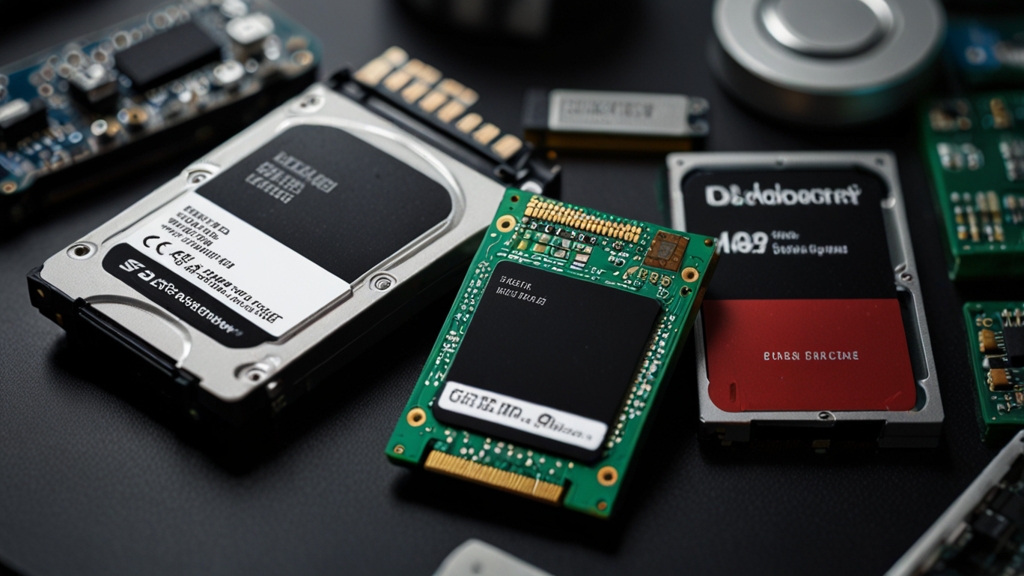
Disk defragmentation is one of those computer maintenance operations that raises many questions for users. Is it even necessary in modern systems? Will it improve performance, or is it just a relic of the past? In this article, we’ll figure out what defragmentation actually is, how it works, and whether it’s really relevant in 2024.
What is disk defragmentation
Disk defragmentation is the process of reorganizing data on a hard drive to improve performance and file access speed. To understand why this is necessary, you need to understand how data is stored on a traditional mechanical hard drive (HDD).
When you save a file to disk, the operating system looks for free space to write it. However, if the disk is 60-70 percent full, it’s often impossible to find a single continuous block of free memory. The system splits the file into several fragments and places them in different locations on the disk. This phenomenon is called fragmentation.
Defragmentation is a process in which a special program rewrites file fragments so that each file occupies a continuous block of disk space. When files are located sequentially, the read head of the hard drive can access them much faster, as it doesn’t need to make many additional movements to collect all fragments scattered across different parts of the disk.
How the defragmentation process works
The defragmentation process begins with analyzing the disk’s condition. A special utility scans all disk space and determines which files are fragmented and how severely. The program then creates a disk map marking all fragments of each file and free space.
At the next stage, the system begins transferring file fragments. It reads parts of the file from different locations on the disk, moves them to buffer memory, and then writes them to a continuous block of free space. This process is repeated for each fragmented file. Modern defragmentation utilities work quite intelligently: they can determine priorities and defragment frequently used files first.
It’s important to note that defragmentation is a fairly lengthy process. Depending on the disk size, how full it is, and the level of fragmentation, the operation can take several hours. During defragmentation, your computer runs slower than usual, as all resources are directed toward rewriting data. This is why it’s recommended to run defragmentation at night or when you’re not using your computer intensively.
Is defragmentation necessary in modern systems
The answer to this question depends on the type of storage you use. For traditional mechanical hard drives (HDD), defragmentation remains a useful procedure, especially if you frequently create, delete, and modify files. However, for solid-state drives (SSD), the situation is completely different.
SSD drives use completely different data storage technology than HDD. They have no moving read head, so data access time is virtually independent of its location on the disk. SSD defragmentation is not only unnecessary but harmful. When defragmenting an SSD, the number of write operations increases significantly, leading to accelerated wear of the drive and a reduction in its lifespan. SSDs have a limited number of write cycles, and pointless defragmentation only brings closer the moment the disk fails.
Windows 10 and Windows 11 already have a built-in intelligent system that automatically detects disk type. For HDD, it regularly runs defragmentation in the background, while for SSD this operation is disabled. The macOS operating system never performs defragmentation on SSD. Therefore, most modern users with SSD drives don’t need to think about defragmentation at all.
When defragmentation is truly useful
If you still use a traditional hard drive, there are specific situations when defragmentation can significantly improve performance. The first situation is when your disk is 80 percent full or more. At this level of occupancy, fragmentation becomes inevitable, and performance noticeably decreases. Defragmentation will help restore normal operating speed.
The second situation occurs after deleting large amounts of data. If you deleted several gigabytes of files, scattered areas of free space appear on the disk. With new writes, the operating system will begin using these areas, which will lead to fragmentation. Defragmentation in this case optimizes the location of remaining files and prepares the disk for future writes.
The third situation is when you notice your computer has started running slower, especially when opening large files or launching applications. This may be a sign of severe fragmentation. However, before defragmenting, you should check for other causes of slowdown, such as viruses, insufficient RAM, or processor issues.
Defragmentation tools
The Windows operating system already has a built-in defragmentation utility. You can find it by searching for “Defragment and Optimize Drive”. The built-in utility works automatically and runs on a schedule, so it’s sufficient for most users. The built-in program is quite reliable and doesn’t require installing additional software.
For more advanced users, there are third-party utilities such as Defraggler, UltraDefrag, or Auslogics Disk Defrag. These programs provide more control and options, allowing you to choose which disks and files to defragment. However, for an average user with an HDD drive, the built-in utility is sufficient for the task. You can learn more about best practices for disk care on PCMag.
It’s important to remember that if you have an SSD drive installed, don’t use defragmentation utilities at all. Modern SSD drives already include built-in TRIM technology, which optimizes performance without harmful defragmentation. If you accidentally run defragmentation on an SSD, Windows usually stops it automatically, but it’s better to avoid this.
In summary, disk defragmentation remains a relevant procedure, but only for users with traditional mechanical hard drives. If you use an SSD, you don’t need defragmentation, and the built-in Windows system will take care of optimization automatically. The key is to understand what type of drive is installed on your computer and act accordingly. Regular maintenance and proper disk care will help keep your system running at peak performance for years to come.