
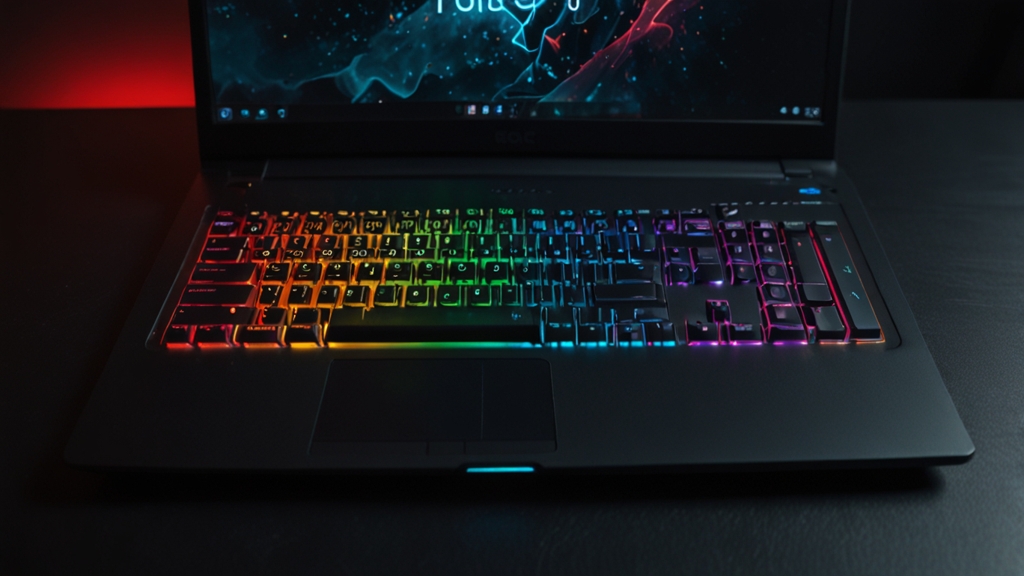
How to Improve Gaming Performance on a Laptop: Essential Tips and Tricks
Gaming on a laptop has come a long way, but it still presents unique challenges compared to desktop PCs. Whether you’re working with an older machine or a newer gaming laptop that’s not quite hitting the performance targets you want, there are plenty of practical steps you can take to squeeze out better frame rates and smoother gameplay. In this guide, we’ll walk you through both software tweaks and hardware considerations that will help you maximize your gaming experience.
Optimize Your Graphics Settings
The easiest way to boost gaming performance on your laptop is by adjusting in-game graphics settings. Most modern games offer a range of quality presets that let you balance visual fidelity with performance.
Step-by-Step Graphics Optimization:
- Start with resolution: Reducing your game’s resolution from 1080p to 900p or 768p can dramatically improve frame rates. This is often the single most impactful change you can make.
- Lower texture quality: Set textures to medium or low quality. Most players won’t notice significant visual differences, but your GPU will thank you.
- Reduce shadow quality: Shadows are computationally expensive. Toggle them to low or disable them entirely for noticeable performance gains.
- Disable or reduce anti-aliasing: FXAA (Fast Approximate Anti-Aliasing) uses less resources than MSAA, making it a good compromise between quality and performance.
- Turn off motion blur and depth of field: These effects look nice but consume valuable GPU resources that could be used for higher frame rates.
- Disable ray tracing: Unless your laptop has a high-end RTX GPU, ray tracing will cripple performance. Save this for desktop gaming.
Update Your Drivers Regularly
GPU manufacturers release driver updates frequently, often including performance optimizations specifically for new games. Keeping your drivers current is one of the simplest yet most overlooked steps to improving gaming performance.
How to Update Your Drivers:
- For NVIDIA laptops: Visit the NVIDIA driver download page and select your GPU model and operating system.
- For AMD laptops: Go to AMD’s driver download page and select your Radeon GPU.
- For Intel integrated graphics: Update through Windows Device Manager or Intel’s support website.
- Always restart your computer after installing driver updates.
Close Background Applications
Background processes consume system resources that your games could be using. Before launching demanding games, take a few moments to clean up unnecessary applications.
What to Close:
- Web browsers with multiple tabs open
- Discord, Skype, or other chat applications
- Cloud storage services like OneDrive or Google Drive
- Antivirus background scans
- Windows updates checking for patches
- RGB lighting control software (from peripherals)
You can use Task Manager (press Ctrl+Shift+Esc) to identify resource-hungry applications and close them before gaming.
Manage Power Settings
Laptops often throttle performance to preserve battery life and reduce heat. Adjusting your power plan can unlock additional performance, especially when plugged in.
Configuring Power Settings:
- Open Settings and navigate to System > Power & sleep > Additional power settings
- Select “High performance” power plan if available
- For gaming, always plug in your laptop rather than relying on battery power
- Consider using the Ultimate Performance plan (available on Windows 10/11 Pro and higher) for maximum performance
- Adjust screen brightness to a reasonable level, as this impacts battery drain and heat generation
Keep Your Laptop Cool
Thermal throttling is a common performance killer on gaming laptops. When your CPU or GPU gets too hot, it automatically reduces its clock speed to cool down, resulting in lower frame rates.
Cooling Strategies:
- Invest in a laptop cooler: External cooling pads with multiple fans can significantly reduce internal temperatures. They’re relatively inexpensive ($20-50) and genuinely effective.
- Ensure proper ventilation: Never game with your laptop on a bed or pillow—these block air vents. Use a hard, flat surface like a desk.
- Clean your vents: Use compressed air to blow dust out of laptop vents every few months. This can improve airflow considerably.
- Monitor temperatures: Use free software like HWiNFO or GPU-Z to track your CPU and GPU temperatures. Aim to keep them below 80°C during gaming.
- Elevate your laptop: Prop up the rear of your laptop slightly to improve air circulation underneath.
Adjust Display Settings
Your operating system’s display settings can impact gaming performance in subtle but meaningful ways.
Display Optimization Tips:
- Disable fullscreen optimizations for games in Windows (right-click game .exe > Properties > Compatibility)
- Set your refresh rate to match your monitor’s maximum capability in display settings
- Disable hardware acceleration in non-gaming applications
- Turn off unnecessary visual effects in Windows (Settings > Ease of Access > Display)
- Use exclusive fullscreen mode rather than borderless windowed mode when possible
Consider Undervolting (Advanced Users)
Undervolting reduces the voltage supplied to your CPU without sacrificing performance, resulting in cooler temperatures and more stable gameplay. This is an advanced technique that requires software like ThrottleStop or Intel XTU, but it can be highly effective when done carefully.
Only attempt undervolting if you’re comfortable with advanced system tweaking, and always proceed gradually with small adjustments.
Upgrade Your Storage
If your laptop uses a traditional hard drive, upgrading to an SSD can improve loading times dramatically. While this doesn’t directly affect frame rates during gameplay, faster load times mean you’ll spend less time waiting and more time playing.
Conclusion
Improving gaming performance on a laptop doesn’t require expensive hardware upgrades. By systematically optimizing your graphics settings, maintaining your drivers, managing background processes, and keeping your system cool, you can achieve noticeably better frame rates and smoother gameplay. Start with the easiest changes—graphics settings and driver updates—and progress to more advanced tweaks as needed. Remember that every laptop is different, so experiment with these tips and find the combination that works best for your specific setup.