
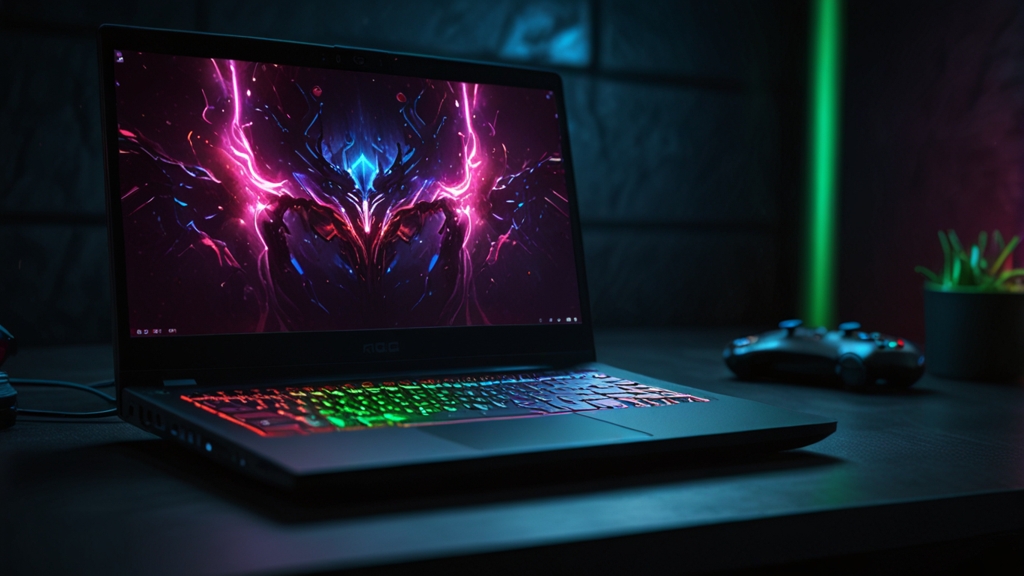
How to Improve Gaming Performance on a Laptop: A Comprehensive Guide
Gaming on a laptop has come a long way, but many enthusiasts still struggle with performance issues. Whether you’re dealing with frame rate drops, thermal throttling, or stuttering gameplay, there are numerous ways to optimize your laptop’s gaming performance without breaking the bank. In this guide, we’ll explore practical strategies to help you get the most out of your mobile gaming rig.
Update Your Graphics Drivers
One of the most impactful yet overlooked steps is keeping your GPU drivers current. Graphics card manufacturers like NVIDIA and AMD release driver updates regularly, often including performance optimizations and bug fixes for the latest games. Outdated drivers can result in poor frame rates and compatibility issues.
To update your drivers:
- For NVIDIA GPUs: Visit the official NVIDIA driver download page, select your GPU model and operating system, and download the latest driver
- For AMD GPUs: Download drivers from AMD’s official website and run the installer
- Allow the installation to complete fully, and restart your laptop when prompted
- Check your driver version afterward by right-clicking on your desktop and selecting GPU control panel
Optimize In-Game Graphics Settings
Laptop gaming is all about balance. You don’t necessarily need maximum graphics to enjoy your games—thoughtful adjustments can dramatically improve performance while maintaining visual quality.
Start by adjusting these key settings:
- Resolution: Lower your game resolution from 1080p to 900p or 720p. This is one of the most effective ways to boost frame rates on laptops
- Shadow Quality: Disable or reduce shadow quality, as shadows are computationally expensive and rarely impact immersion significantly
- Anti-Aliasing: Switch from 4x or 8x anti-aliasing to 2x or FXAA, which uses less GPU resources
- Draw Distance: Reduce draw distance to lower geometry calculations your laptop must perform
- Texture Quality: Lower texture resolution from Ultra to High or Medium settings
- Ray Tracing and DLSS: If available, enable DLSS (NVIDIA) or FSR (AMD), which improve performance through intelligent upscaling
Manage System Resources and Background Processes
Your laptop is likely running numerous background applications that consume valuable CPU and GPU resources. Closing unnecessary programs can free up processing power for your games.
Follow these steps:
- Press Ctrl+Shift+Esc to open the Task Manager
- Review running processes and close unnecessary applications (web browsers, Discord, streaming software, etc.)
- Check the Startup tab and disable programs you don’t need launching at boot
- Disable Windows notifications and reduce visual effects by right-clicking “This PC” and selecting Properties, then Advanced System Settings
- Consider using a tool like CCleaner to safely remove unnecessary startup programs
Improve Thermal Management
Laptops generate significant heat during gaming, and thermal throttling—where your GPU reduces clock speeds to prevent overheating—can severely impact performance. Maintaining proper cooling is essential for sustained frame rates.
Implement these thermal management strategies:
- Clean your laptop’s air vents and fans using compressed air to remove dust buildup
- Invest in a laptop cooling pad with external fans to improve airflow
- Place your laptop on a hard, flat surface rather than on beds or cushions that block ventilation
- Use thermal monitoring software like HWiNFO to check GPU and CPU temperatures during gaming
- Aim to keep GPU temperatures below 80°C for optimal performance
- If temperatures remain high, consider undervolting your GPU (advanced users only) to reduce heat generation while maintaining performance
Adjust Power Settings
Laptop power settings can significantly affect gaming performance. By default, many laptops run in Balanced or Power Saving mode, which throttles GPU performance to conserve battery life.
To optimize power settings:
- Click the battery icon in your system tray and select Power Settings
- Switch to High Performance mode when gaming
- Keep your laptop plugged in during gaming sessions—battery power limits GPU performance
- In your GPU control panel, set power management to “Prefer Maximum Performance”
- Ensure your laptop’s BIOS is updated, as manufacturers frequently release BIOS updates that improve power delivery to GPUs
Monitor GPU and CPU Usage
Understanding whether your laptop is GPU-bound or CPU-bound helps you make better optimization decisions. If your GPU is at 100% utilization but your CPU isn’t, focus on lowering graphical settings. If your CPU is maxed out, lower your resolution to ease GPU load, which allows the CPU to keep up better.
Use monitoring tools like:
- MSI Afterburner (free overlay that shows real-time GPU and CPU usage)
- NVIDIA GeForce Experience overlay (for NVIDIA GPUs)
- Built-in Windows Task Manager Performance tab
Consider External GPU Solutions
For users with Thunderbolt 3 ports, external GPU enclosures provide a significant performance boost. While this is a more substantial investment, it allows you to attach a desktop-class graphics card to your laptop, dramatically improving gaming capabilities.
Final Thoughts
Improving laptop gaming performance doesn’t require purchasing new hardware. By systematically applying these optimization strategies—from driver updates and thermal management to graphics settings adjustments and power optimization—you can achieve smoother, more enjoyable gaming experiences. Remember, the key is finding the right balance between visual quality and performance that works for your specific laptop and gaming preferences. Start with the easier tweaks and work your way toward more advanced optimizations based on your results.